How to Spot Phishing Emails That Impersonate MyChart and Other Patient Portals
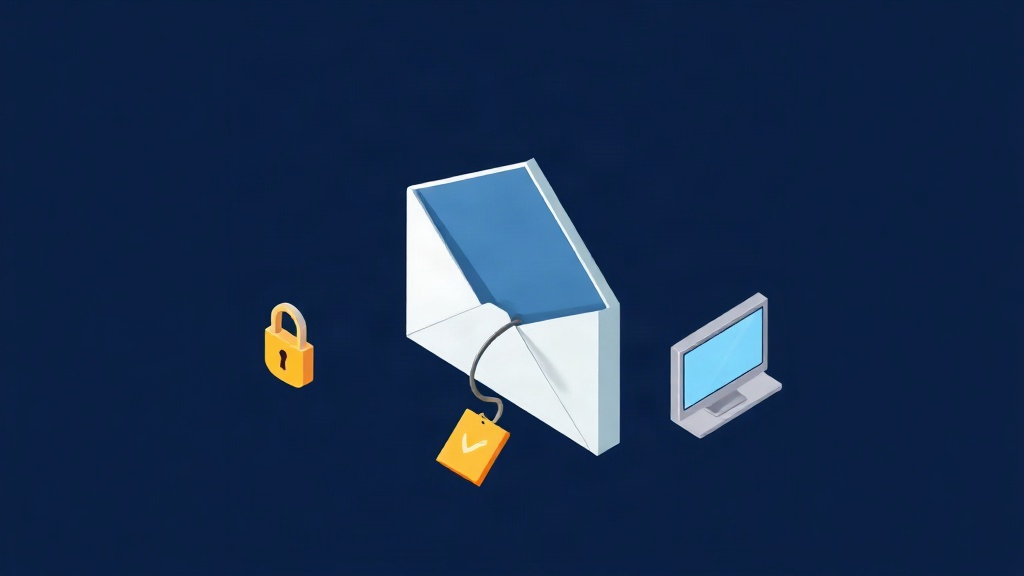
If your business handles patient communications or uses patient portals like MyChart, you’ve probably seen the recent warning from the American Hospital Association about phishing schemes that impersonate these systems. Hackers are sending fraudulent emails and other messages that look like they come from MyChart, aiming to steal login credentials and sensitive data. This isn’t just a healthcare problem—it’s a business problem, because any organization that interacts with patients or partners with healthcare providers is a target.
The good news is that you can protect your business by learning to recognize these scams and by putting simple safeguards in place. Here’s what you need to know and do.
What the MyChart Phishing Scam Looks Like
Phishing emails impersonating MyChart typically include a fake login link that leads to a look-alike website. The email might claim there’s a new message from your doctor, a lab result, or a billing issue. It creates urgency, hoping you’ll click without thinking.
These emails often have telltale signs:
- The sender’s email address doesn’t match the official domain (e.g., @mychart.com instead of @yourhospital.org).
- The greeting is generic, like “Dear Patient,” rather than your actual name.
- The message contains spelling or grammar errors.
- The link URL looks suspicious when you hover over it.
Why Your Business Should Care
You might think, “We don’t use MyChart directly.” But if your employees use personal accounts to check their own health records, or if your business partners with healthcare providers, a single compromised credential can open a door to your network. Cybercriminals often use one successful phishing attempt to launch ransomware or data breaches that affect many organizations.
For small and mid-sized businesses, the cost of a data breach can be devastating—not just financially, but in lost trust and reputation. So even if you’re not a healthcare provider, you need to be vigilant.
How to Spot a Phishing Email
Here are practical steps you and your team can take to spot these fraudulent messages:
Check the Sender’s Email Address
Look at the full email address, not just the display name. If it’s from a free service like Gmail or Yahoo, or if the domain is slightly misspelled, it’s a red flag.
Hover Over Links Before Clicking
On a computer, hover your mouse over any link to see the actual URL. If it doesn’t match the official website, don’t click. On a mobile device, press and hold the link to preview it.
Look for Generic Greetings and Urgency
Phishing emails often use “Dear Customer” or “Immediate Action Required” to create panic. Legitimate patient portals usually address you by name and don’t demand instant action.
Don’t Download Attachments You Weren’t Expecting
Attachments can contain malware. If you weren’t expecting a file, verify with the sender through a known phone number or official website before opening it.
What to Do If You Receive a Suspicious Email
If you or an employee receives a suspicious email that appears to be from MyChart or another patient portal, follow these steps:
- Don’t click any links or download attachments.
- Report the email to your IT department or managed service provider immediately.
- If you already clicked a link, disconnect your device from the network and contact your IT support right away.
- Forward the email to the actual organization being impersonated, using a known contact method.
You can also use Microsoft 365’s built-in reporting tools. In Outlook, select the suspicious email and use the “Report Message” button to alert Microsoft and your admin. If you’re using Microsoft Defender for Office 365, your IT team can set up policies to automatically quarantine phishing attempts.
How to Protect Your Business with Technology
Technology can add a strong layer of defense. Here are specific tools and settings to consider:
Enable Multi-Factor Authentication (MFA)
MFA requires a second form of verification, like a code from your phone, even if someone steals your password. In Microsoft Entra ID (formerly Azure AD), you can enforce MFA for all users. This simple step blocks most phishing attacks.
Use Email Filtering and Advanced Threat Protection
Microsoft 365 includes Exchange Online Protection (EOP) and, with a premium license, Microsoft Defender for Office 365. These tools scan emails for malicious links and attachments, and they can automatically quarantine suspicious messages. Make sure your admin has configured these features.
Train Your Team
Regular security awareness training is essential. Services like KnowBe4 or Microsoft’s own attack simulation training can help your employees recognize phishing attempts. Practice with simulated phishing emails to reinforce the lessons.
What to Do If You Think You’ve Been Compromised
If you believe a phishing email tricked someone in your organization, act quickly:
- Change the affected passwords immediately.
- Revoke any active sessions for that user in Microsoft Entra ID.
- Run a full antivirus scan on the affected device.
- Contact your IT provider to investigate and remediate.
If you don’t have an internal IT team, consider partnering with a managed service provider that can respond to incidents 24/7. At KloudFokus, we offer managed IT services that include security monitoring and incident response.
Next Steps for Your Business
Now that you know what to look for, take these concrete actions:
- Schedule a security awareness training session for your team this month.
- Ensure MFA is enabled for all your business accounts.
- Review your email security settings with your IT provider.
- Set up a clear process for reporting suspicious emails.
If you need help implementing these protections, our team can assist. We also offer AI-powered IT services that can automate threat detection and response, giving you peace of mind.
Don’t wait until a phishing email succeeds. Contact KloudFokus today to strengthen your defenses and keep your business safe.